
Tool Cart

The Tool Cart allows you to download multiple tools and components as a single package. ToolsUnited offers two ways to create a Tool Cart:

  • Manually via the tool data sheet (for individual tools)
  • Via Excel import (for larger quantities)

Create a Tool Cart manually

This option is particularly suitable for individual tools and a small number of complete tool sets.

Watch the How-To Video

Watch the tutorial to gain a better understanding of the workflow and available functionalities.

Follow the Step-by-Step Guide

Everything you need to know, explained step by step.
1

Select a tool

  1. Select a tool
    Find and open the tool you want.
  2. Add to the tool cart
    Use the “Tool Cart” feature in the header.
2

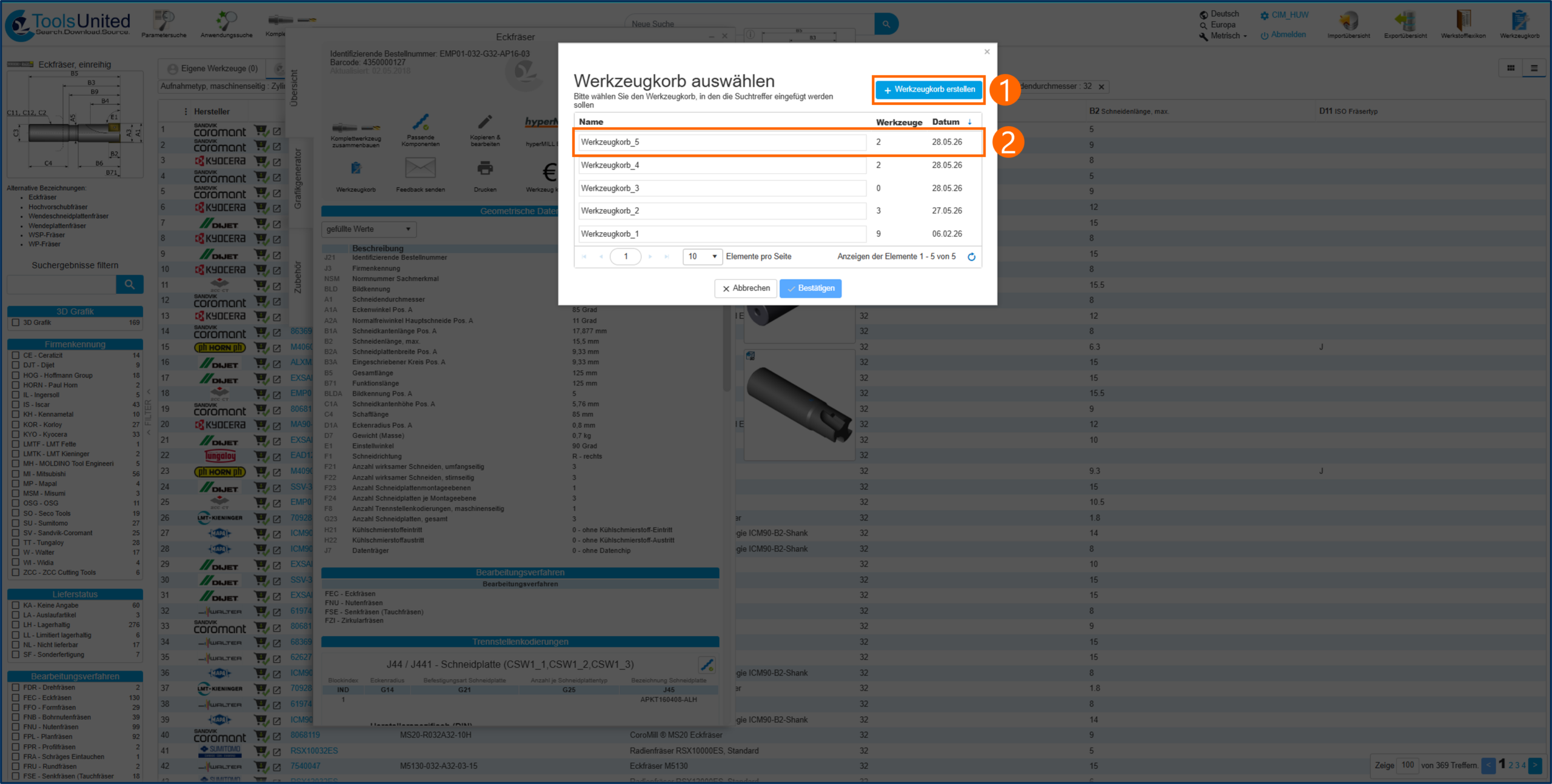
Select a tool cart or create a new one

  1. Select an existing shopping cart
  2. Or create a new shopping cart
3

Create a new tool cart (optional)

  1. Enter a name
  2. Confirm by clicking “Create Tool Cart”
  3. The tool is added automatically
4

Add more components

  • Use “Matching Components” to find items such as holders or cutting inserts
  • Add the components to the same tool basket
  • Finally, confirm
5

Complete tool cart

Repeat these steps until your tool is fully assembled.

Then open the tool cart
Click the “Tool Cart” button on the taskbar to view the overview.

6

Export

  • Open the tool cart
  • All components are displayed
  • Export them all together in the desired format
7

Create a tool cart using Excel

This version is suitable for larger quantities of tools.

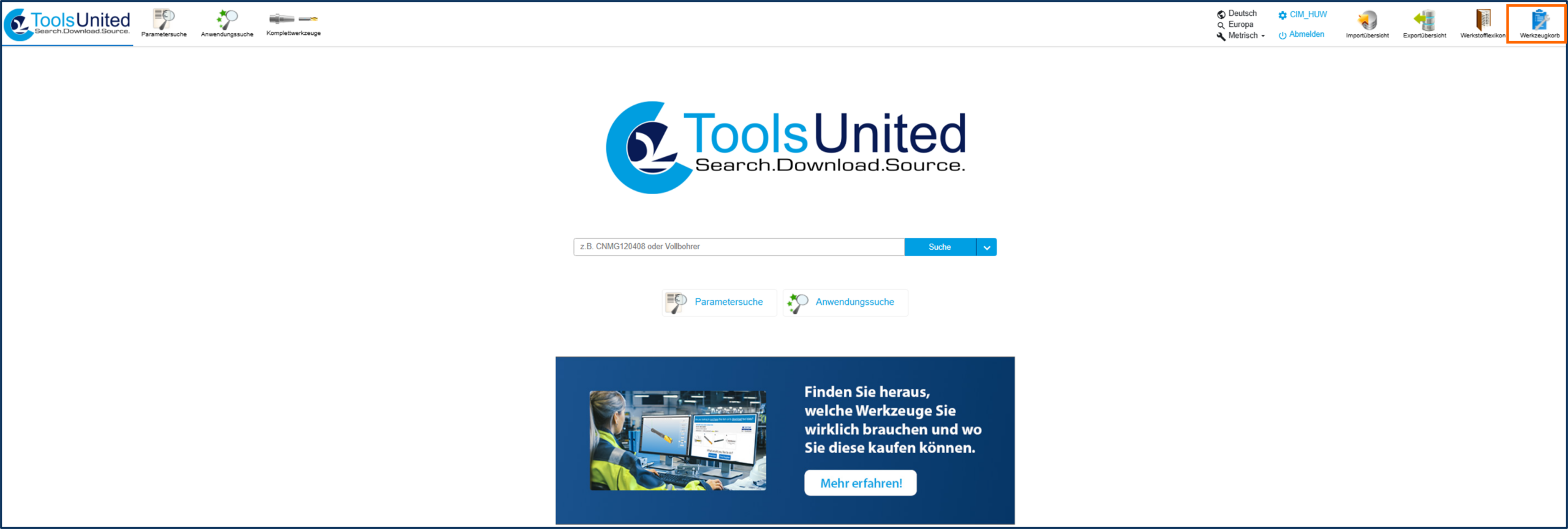
Open a tool cart.
8

Create tool cart from file

In the tool cart overview: “Create tool cart from file”

9

Download template

Download the Excel template provided.

10

Insert data

  • Enter the J21 codes (part numbers) for the tools
  • Add the J3 manufacturer codes for each tool (included in the template)
11

Upload file

Select the completed Excel file

12

Create tool cart

  • Name the new tool cart
  • Start the process by clicking “Create Tool Cart”
13

Check progress

Progress is displayed in the export summary

14

Download tool cart

Once you're done, you can download your entire tool cart at once.

After the import, you can generate a report file in the import overview.