Tool Data for DELMIA Machining

Access thousands of cutting tool specifications form leading manufacturers and seamlessly import them into DELMIA Machining. Save time, reduce errors, and optimize your tool management workflow.

What Is DELMIA Machining?

DELMIA Machining is a CAM software solution developed by Dassault Systèmes that enables manufacturers to program, simulate, and optimize CNC machining processes within a single integrated environment. It supports a wide range of operations — from milling and turning to multi-axis machining — and provides realistic 3D simulation of tool paths and machine movements before production begins, significantly reducing errors and programming time.

Dassault Systèmes was founded in 1981 and is headquartered in France, with additional offices in Massachusetts and Tokyo. As a pioneer in 3D design and digital manufacturing, the company offers a comprehensive suite of solutions under its 3DEXPERIENCE platform, empowering manufacturers across industries to virtually plan, simulate, and optimize their entire production operations.

Why Use ToolsUnited with DELMIA Machining?

1,327,534 unique tool components

Access a continuously growing library of tool components from leading manufacturers — all in one place, ready to be pulled directly into your workflow

62 leading tool manufacturers

Source tools from more and more internationally recognized tool manufacturers. Whether you work with Sandvik, Kennametal, Walter, or others — ToolsUnited brings their complete catalogs together in a single, unified interface.

Checked data quality & DIN/ISO compatibility

Every tool component in ToolsUnited is validated for data integrity and complies with DIN/ISO standards. This ensures your CAM or tool management system receives clean, consistent data — no manual corrections, no compatibility issues.

File exports optimized for DELMIA Machining

ToolsUnited generates tool data exports specifically formatted for DELMIA Machining. Import-ready files ensure seamless compatibility and save your team the time spent on reformatting or data cleanup.

Follow the Step-by-Step Guide

New to the integration? Our guide walks you through setup and your first successful tool data transfer, step by step.

1

Open 3DEXPERIECE|DELMIA Cutting Tool Builder

2

3DEXPERIENCE Window

A) Click on Catalogues web search

B) Click the “ToolsUnited” icon

C) If ToolsUnited Icon not available, click on “+”

3

If ToolsUnited Icon was not available

Fill the required information –

A) Company Name:  ToolsUnited

B) Company –URL:  https://toolsunited.com?mode=dassault

C) Company Symbol

D) Click on “OK”

4

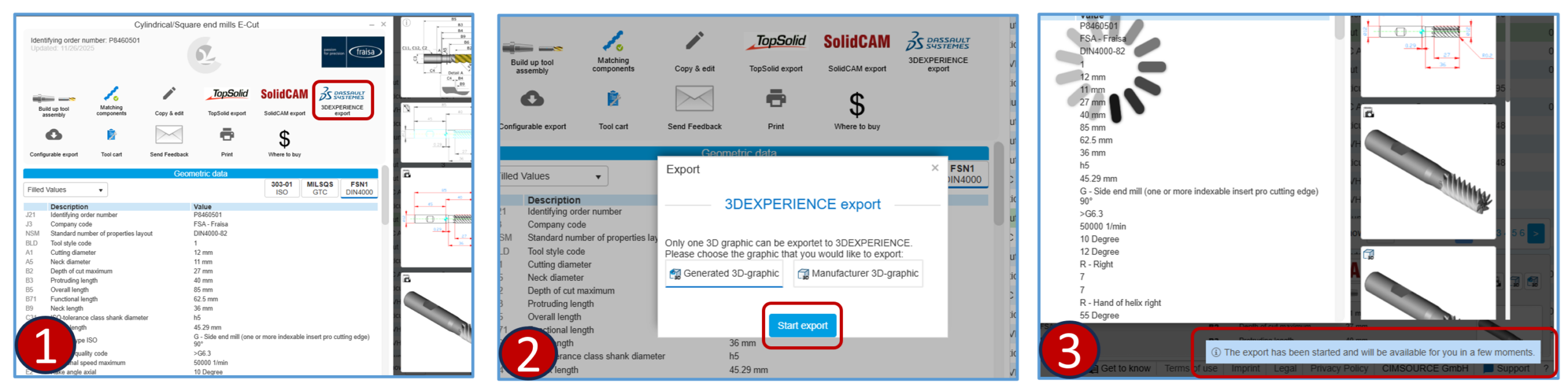
Export TU-3DEXPERIENCE

  1. After selecting Component/Assembly click on “DASSAULT SYSTEMS 3DEXPERIENCE” Icon
  2. Click on Start Export
  3. Export process start message will display
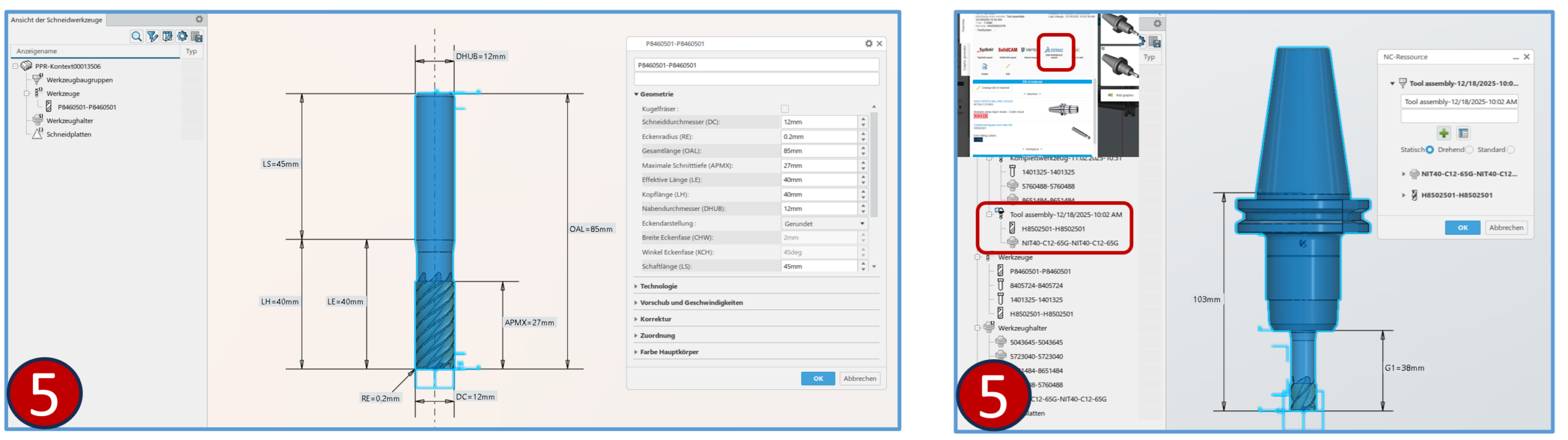
5

Resource P21 import option

Click on “OK”

6

3DEXPERIENCE Window

3DEXPERIENCE window will open with selected Component/Assembly
Any questions?

If you have any questions, please contact our support. We are happy to help!