
Tool Data for CoroPlus Tool Library

Access thousands of cutting tool specifications form leading manufacturers and seamlessly import them into CoroPlus Tool Library. Save time, reduce errors, and optimize your tool management workflow.

What Is CoroPlus Tool Library?

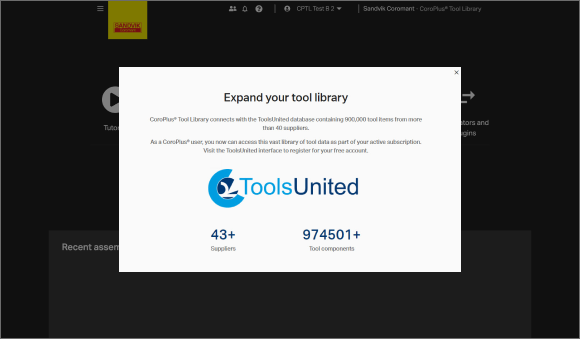
Integration between ToolsUnited and CoroPlus® Tool Library enables users to search for cutting tool items from various vendors and facilitating the smooth assembly building process. This integration leads to better decision-making in tool selection and reducing unnecessary tool inventory, resulting in potential cost savings.

Why Use ToolsUnited with CoroPlus Tool Library?

1,327,534 unique tool components

Access a continuously growing library of tool components from leading manufacturers — all in one place, ready to be pulled directly into your workflow

62 leading tool manufacturers

Source tools from more and more internationally recognized tool manufacturers. Whether you work with Sandvik, Kennametal, Walter, or others — ToolsUnited brings their complete catalogs together in a single, unified interface.

Checked data quality & DIN/ISO compatibility

Every tool component in ToolsUnited is validated for data integrity and complies with DIN/ISO standards. This ensures your CAM or tool management system receives clean, consistent data — no manual corrections, no compatibility issues.

File exports optimized for CoroPlus Tool Library

ToolsUnited generates tool data exports specifically formatted for CoroPlus Tool Library. Import-ready files ensure seamless compatibility and save your team the time spent on reformatting or data cleanup.

Follow the Step-by-Step Guide

New to the integration? Our guide walks you through setup and your first successful tool data transfer, step by step.

2

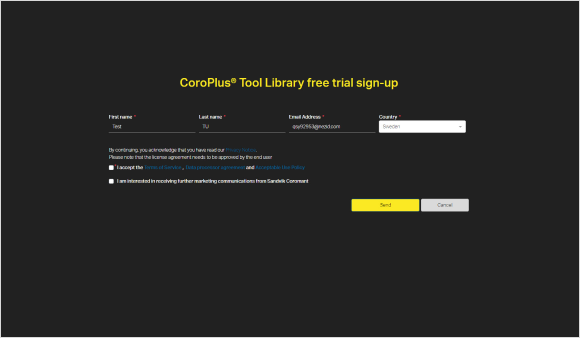
Tool Library sign-up

Fill up the fields and click "Send"
4

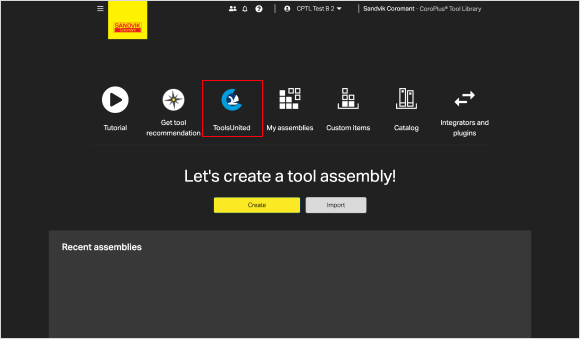
Select ToolsUnited

Click "ToolsUnited"

5

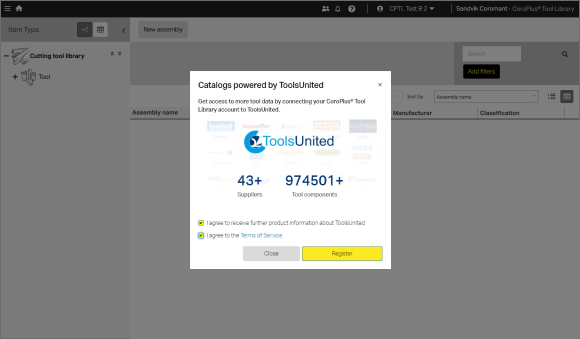
Register to ToolsUnited

Click "Register"

6

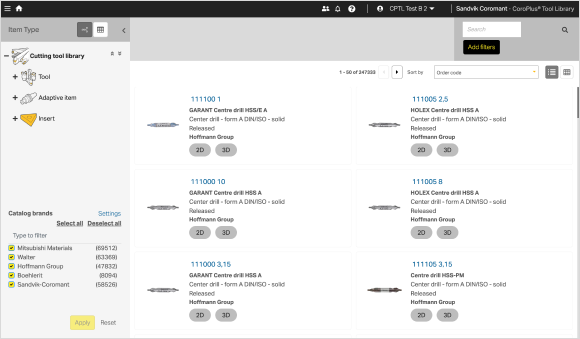
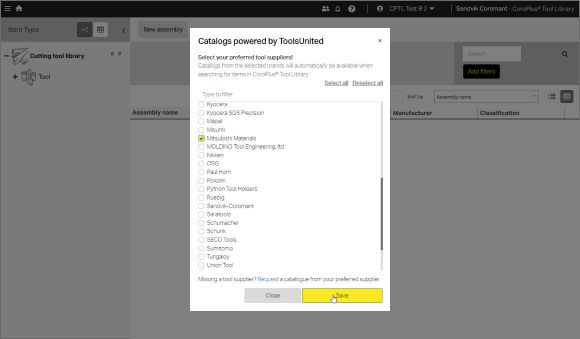
Select Suppliers

Select the suppliers you want see and click "Save"
7

Select Tool

Select the tool and double click it

8

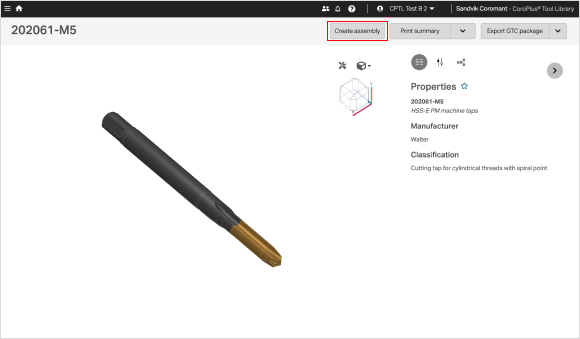
Create Assembly

Click "Create assembly"

9

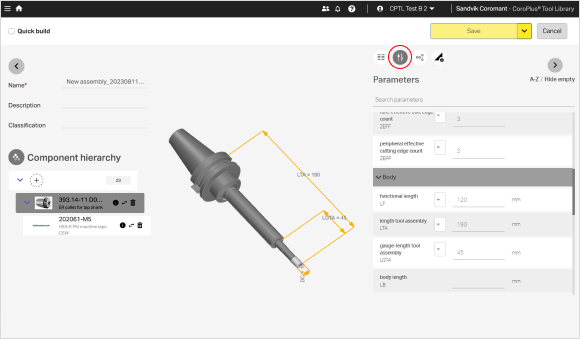
Select Parameters

Select the "Parameter" button on the right and check parameters of the assembly
10

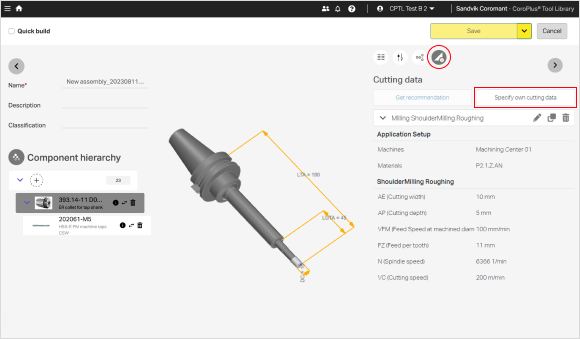
Specify Cutting Data

Select the "Cutting data" button on the right and specify your own cutting data for the assembly.

Once the assembly building process is completed in the CoroPlus® Tool Library, the tooling and machining data can be seamlessly transferred to CAM, Simulation software. This process serves to significantly enhance efficiency and security in CAM programming, leading to time savings and quality improvement during simulation and verification stages.

Any questions?

If you have any questions, please contact our support. We are happy to help!