GibbsCAM

Use ToolsUnited Plug-In for GibbsCAM

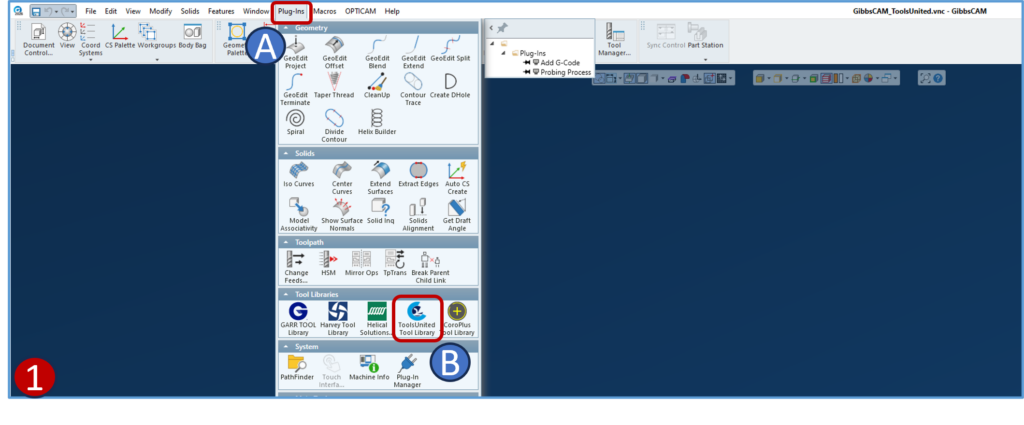
1- Open GibbsCAM
A- Click on the Plug-Ins button
B- Click on the ToolsUnited icon

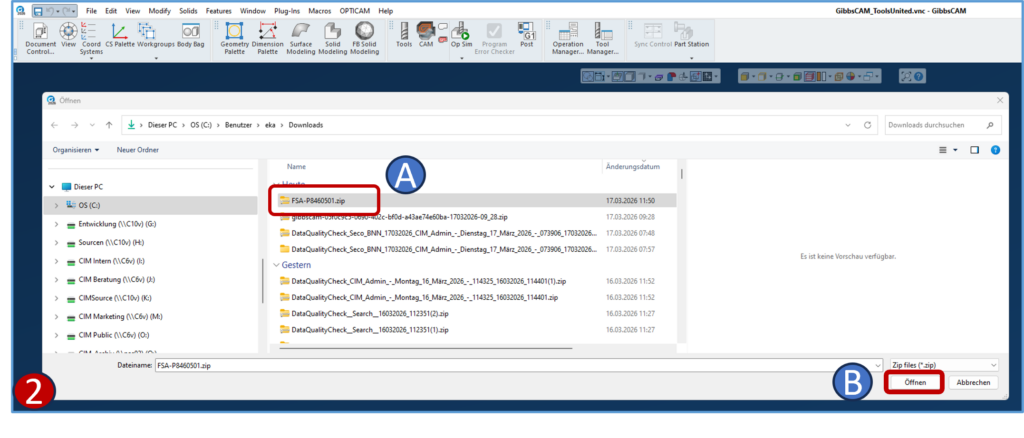
2- If a .zip file with the required data is already available or downloaded from ToolsUnited:

A. Select the .zip file
B. Click Open

Use ToolsUnited Page in GibbsCAM

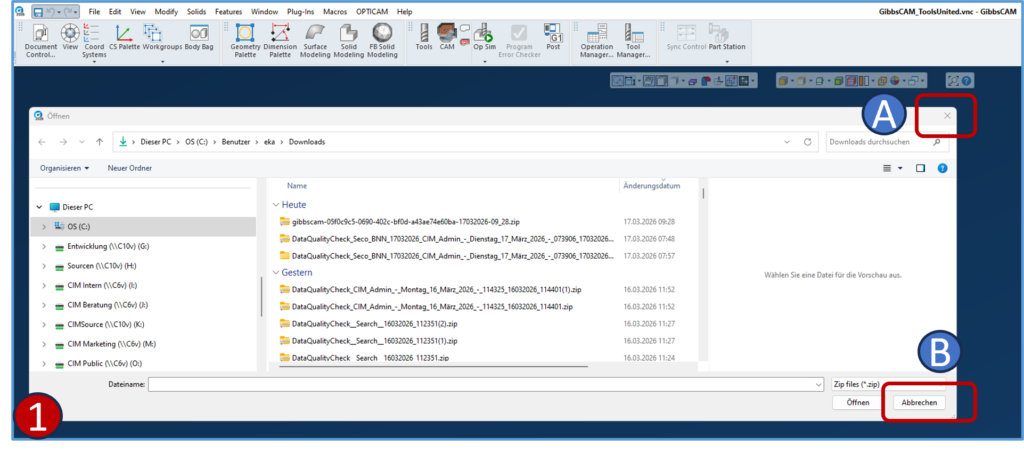
1- Alternatively, to access ToolsUnited:

A. Close the window
Or
B. Cancel the window
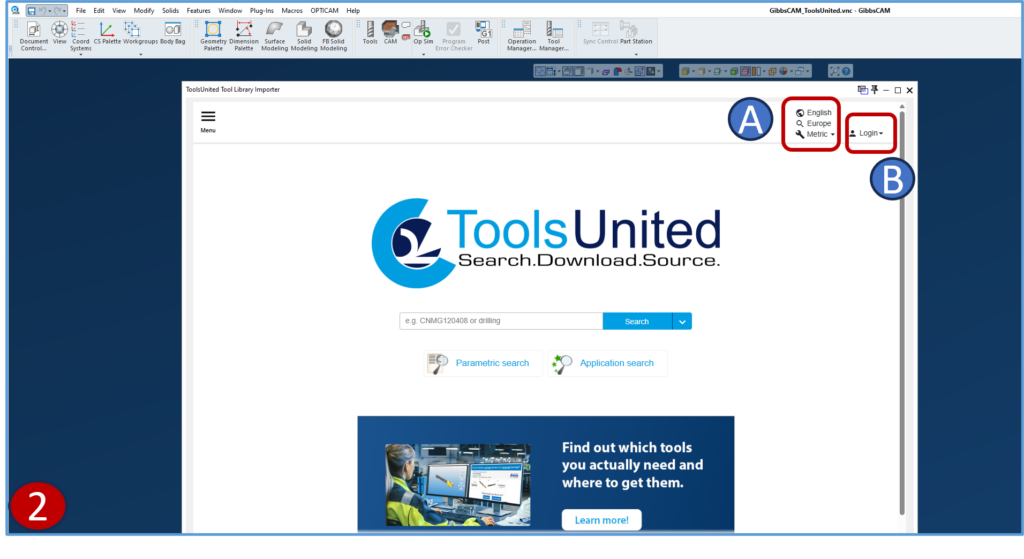
2- The ToolsUnited Page will open
A. Change the language if required
B. Login into the ToolsUnited page or register a new account

Search and Export Items

For more Information on how to use the basic navigation methods of ToolsUnited please refer to the tutorials.

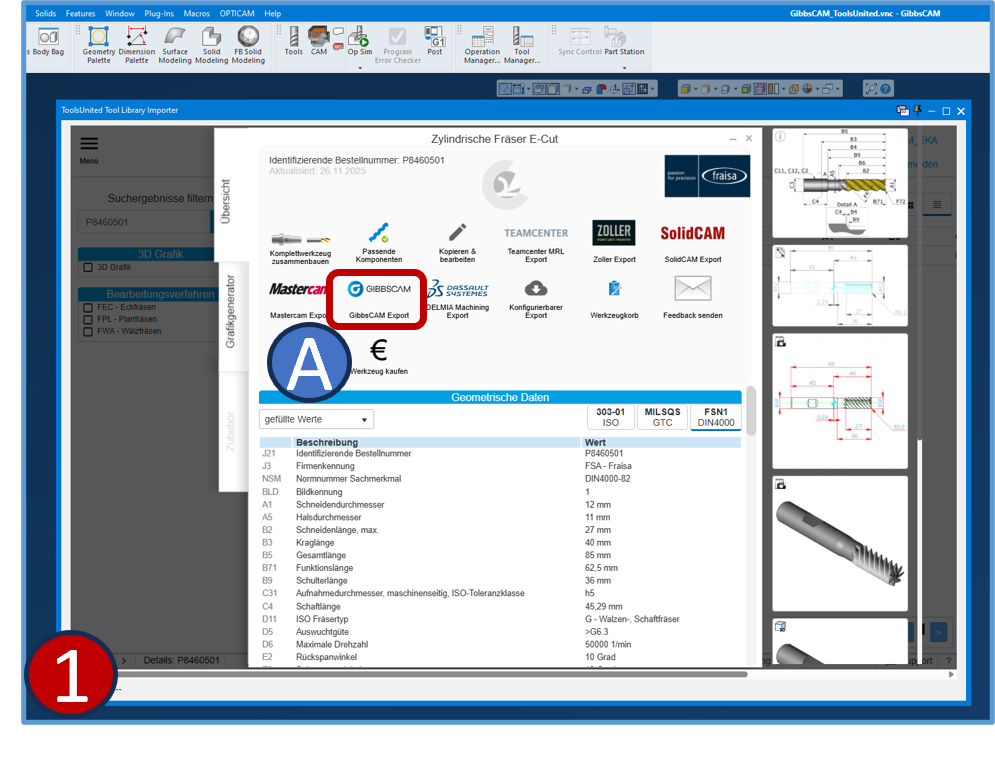
1- Export to GibbsCAM

A- Click on the GibbsCAM Export Icon

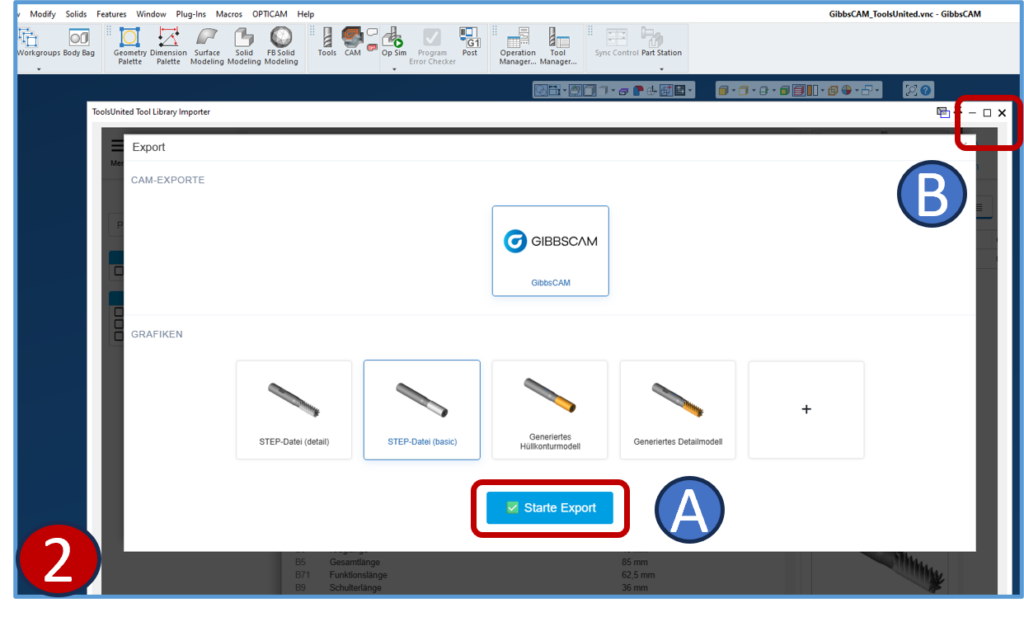
2- Start Export

A- Click on Start Export
B- Close or minimize the TU window

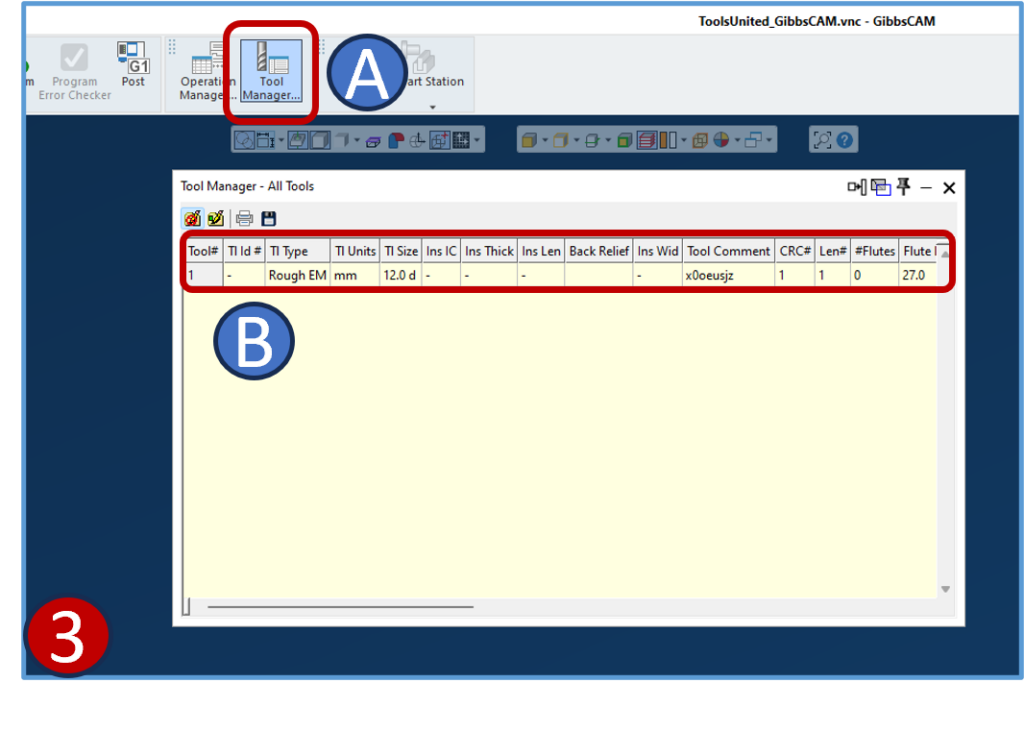
3- In GibbsCAM

A- Click on Tool Manager 
B- The ‘All Tools’ – window will open. Double-click on the required item

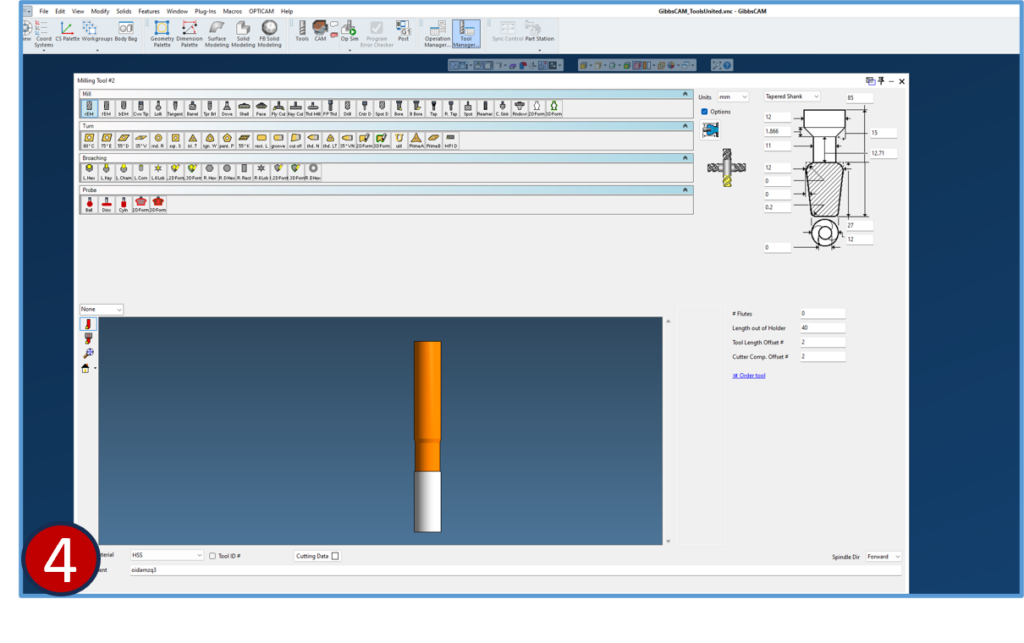
4- Exported cutters will be displayed with its parameters

Any questions?

If you have any questions, please contact our support. We are happy to help!