
Tool Data for Elbo Controlli NIKKEN TP32

Access thousands of cutting tool specifications form leading manufacturers and seamlessly import them into Elbo Controlli NIKKEN TP32. Save time, reduce errors, and optimize your tool management workflow.

What Is Elbo Controlli NIKKEN TP32?

Elbo Controlli develops advanced measurement, presetting, and automation solutions for CNC machining environments. Its systems are designed to improve accuracy, efficiency, and process control in modern manufacturing workflows, supporting applications such as tool presetting, tool measurement, and production data management.

The NIKKEN TP32 is a tool presetting solution developed in collaboration with NIKKEN, enabling manufacturers to accurately measure and configure cutting tools before they are loaded into CNC machines. By reducing setup times and minimizing machining errors, the system helps optimize productivity, improve repeatability, and support more efficient shopfloor operations.

Why Use ToolsUnited with Elbo Controlli NIKKEN TP32?

ToolsUnited brings together tool data from different manufacturers in a single, reliable source — ready to use for your application.

1 334 650 unique tool components

Access a continuously growing library of tool components from leading manufacturers — all in one place, ready to be pulled directly into your workflow

62 world class brands and manufacturers

Source tools from more and more internationally recognized tool manufacturers. Whether you work with Sandvik, Kennametal, Walter, or others — ToolsUnited brings their complete catalogs together in a single, unified interface.

Checked data quality & DIN/ISO compatibility

Every tool component in ToolsUnited is validated for data integrity and complies with DIN/ISO standards. This ensures your CAM or tool management system receives clean, consistent data — no manual corrections, no compatibility issues.

File exports optimized for Elbo Controlli NIKKEN TP32

ToolsUnited generates tool data exports specifically formatted for Elbo Controlli NIKKEN TP32. Import-ready files ensure seamless compatibility and save your team the time spent on reformatting or data cleanup.

Follow the Step-by-Step Guide

New to the integration? Our guide walks you through setup and your first successful tool data transfer, step by step.

1

Open ToolsUnited

  • Open a browser and navigate to ToolsUnited.com (1)
  • Click on “Login” (2), enter your login credentials (3), and search for a suitable tool (4)
  • Once you’ve found a suitable tool, make note of the “Identifying Order Number” (J21)
  • Click on the “Elbo Controlli NIKKEN Export Button”. This button will only appear if the tool is compatible with Elbo Controlli NIKKEN TP32.
2

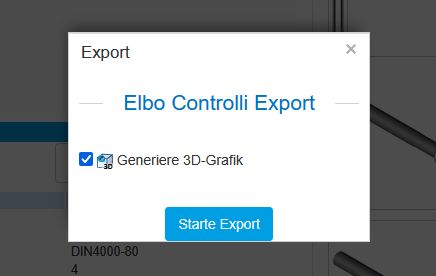
Start export

Click on “Start Export”
3

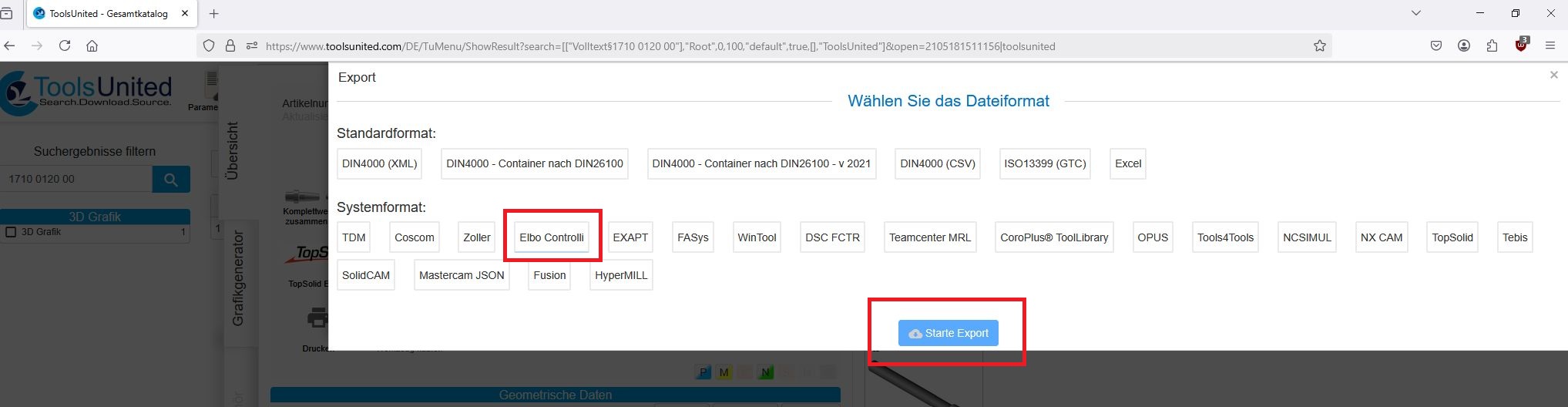
Select correct export

If the Elbo Controlli NIKKEN export is not set as the default in your profile, you can also access it via the “Configurable Export” button and select the ELBO Controlli export.
4

Start TP32

A ZIP file containing the tool will now be generated. Download and save this file to the working directory path where you store your Elbo TP32 XML imports, e.g., C:\ELBOControlli.

Now you can start Elbo Controlli Nikken TP32.

Left-click on “Warehouse Area” and log in.

5

Open import window

In the left menu, under “Components”, click the button with the ToolsUnited symbol. A window will open titled “TP32 COMPONENTS IMPORTED FROM TOOLSUNITED”. It will initially be empty. Click on “Import File”.

6

Select the file

Now you can select the exported ZIP files you just created. Confirm your selection with “Open”.

7

Import data

The selected dataset will now appear in the previous window. If everything looks correct, you can import it by clicking “Save data into TP32”.

8

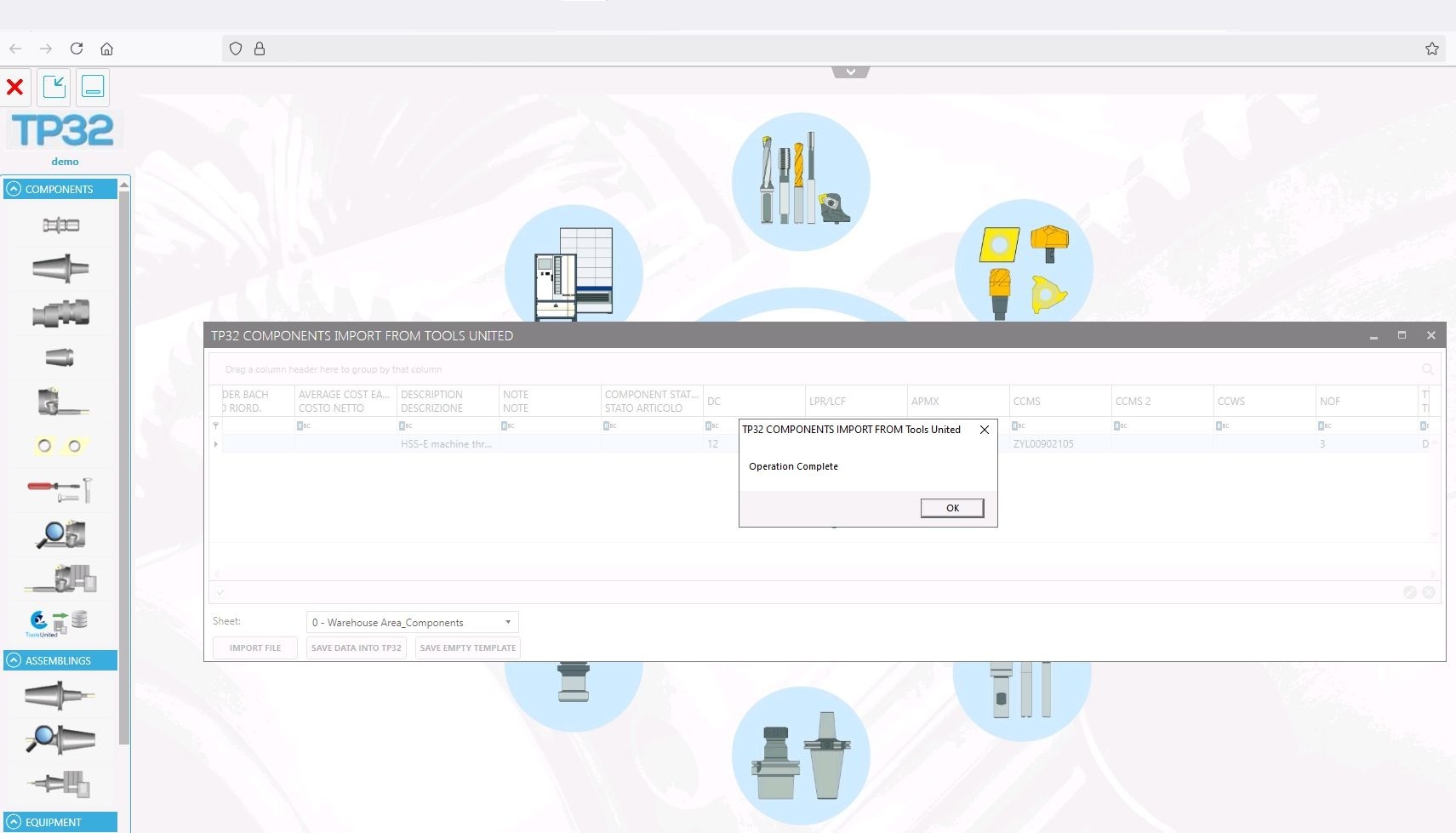
Wait for confirmation

The actual import is now complete and will be confirmed.
9

Click tool components icon

Next, click the tool components icon in the left-hand column. Several windows will open.

10

Select tool

In the left window, open the list of all components and select the tool you just imported. Under “Mfr part number”, you will find the original order number as listed in ToolsUnited.

11

Open tool data

A double-click on the corresponding line opens the tool data.

Any questions?

If you have any questions, please contact our support. We are happy to help!