

Tool Data for TopSolid

Access thousands of cutting tool specifications form leading manufacturers and seamlessly import them into TopSolid. Save time, reduce errors, and optimize your tool management workflow.

What Is TopSolid?

TopSolid'Cam is a fully integrated CAD/CAM solution in which the CAD and CAM environments are parametric and associative, covering milling, turning, mill-turn, and erosion processes from 2D and 3D up to continuous 5-axis machining. The software supports reliable simulation at multiple levels — from toolpath verification to full ISO code simulation — and allows manufacturers to save and reuse machining operations as templates, helping to standardize and automate production workflows.

TopSolid is developed by the French company TopSolid SAS, originally founded in 1984 as Missler Informatique by the Missler brothers, who initially designed and manufactured CNC machines before pivoting to software development. Headquartered in Évry, France, TopSolid offers a broad range of integrated CAD/CAM and ERP solutions for the mechanical manufacturing, tooling, wood, and sheet metal industries, distributing its software globally through a network of value-added resellers.

Why Use ToolsUnited with TopSolid?

ToolsUnited brings together tool data from different manufacturers in a single, reliable source — ready to use for your application.

1,334,650 unique tool components

Access a continuously growing library of tool components from leading manufacturers — all in one place, ready to be pulled directly into your workflow

62 world class brands and manufacturers

Source tools from more and more internationally recognized tool manufacturers. Whether you work with Sandvik, Kennametal, Walter, or others — ToolsUnited brings their complete catalogs together in a single, unified interface.

Checked data quality & DIN/ISO compatibility

Every tool component in ToolsUnited is validated for data integrity and complies with DIN/ISO standards. This ensures your CAM or tool management system receives clean, consistent data — no manual corrections, no compatibility issues.

Direct integration into TopSolid

ToolsUnited connects natively with TopSolid, eliminating the need for manual data transfer. Tool data flows directly into your environment — accurate, structured, and immediately usable.

Trust the expert — because no one explains the value better than the people working with it firsthand.

%title%

Tool data and 3D models are important for programming and simulation in TopSolid. In ToolsUnited they are available on demand. What else could you wish for?

Ulrich Alt, WeSt GmbH (TopSolid)

Watch the How-To Video

See how to find and import tool data in just a few clicks — from search to ready-to-use tool assembly.

ToolsUnited is a manufacturer-independent, web-based database for tool data. We can search for tool data with 3D graphic information, specify tool names, or use the extensive ToolsUnited classification to find the tools we are looking for. Here, for example, I specify a diameter of 20 mm and a cutting length of 30 mm and get an overview of all tools stored with these parameters. I can filter by corner radius, manufacturer, overhang length, clamping system, and so on.

In the detailed view of a tool, I receive all the information provided by the manufacturer, including the information relevant for export to TopSolid, and I can start the export with a single click. The 3D graphic is generated by ToolsUnited based on the data stored by the manufacturer. I then copy this tool into my own area, where I can use it and, in a further step, assemble it into complete tools.

Another way to search for tools is the application search. Here, I start from the machining process I want to create and select the appropriate tool. I am now looking for a machining process for turning, select the tool size, and receive a list of search results. There are 600,000 or more components from all relevant manufacturers, most of them with data for 3D graphics and for transfer to TopSolid. I now also copy this tool into my own area, into my tools, and start the TopSolid export.

2:45
When assembling a complete tool, I can use all components available in ToolsUnited or those I have copied into my own area. Starting with an empty complete tool, I first add the cutting part. I take the milling cutter that I previously copied into my own tools. I can once again view all the information about this cutter and now add it to the complete tool. I can then search above the interface for a suitable holder from the ToolsUnited database. Here as well, I can access the information and, if necessary, add further components to the complete tool. However, we will leave it at these two components for now. The complete tool is then displayed in the list of complete tools, and here too I can start the export to TopSolid.

4:11
The import into TopSolid itself is done using the free importer. I simply open the downloaded ZIP files, which contain all the tool information, and start the import. This works for simple tools as well as for complete tools. The tools are created in TopSolid with all relevant information and functions so that they can be used directly, as shown here with this turning tool.

Follow the Step-by-Step Guide

New to the integration? Our guide walks you through setup and your first successful tool data transfer, step by step.

1

Select 3D-capable components

Tools for the TopSolid interface must be at least 3D-capable. Therefore, when searching for tools, the checkboxes “3D graphics” and “Generated 3D graphics” should be selected.

2

Make sure the tool is TopSolid-compatible

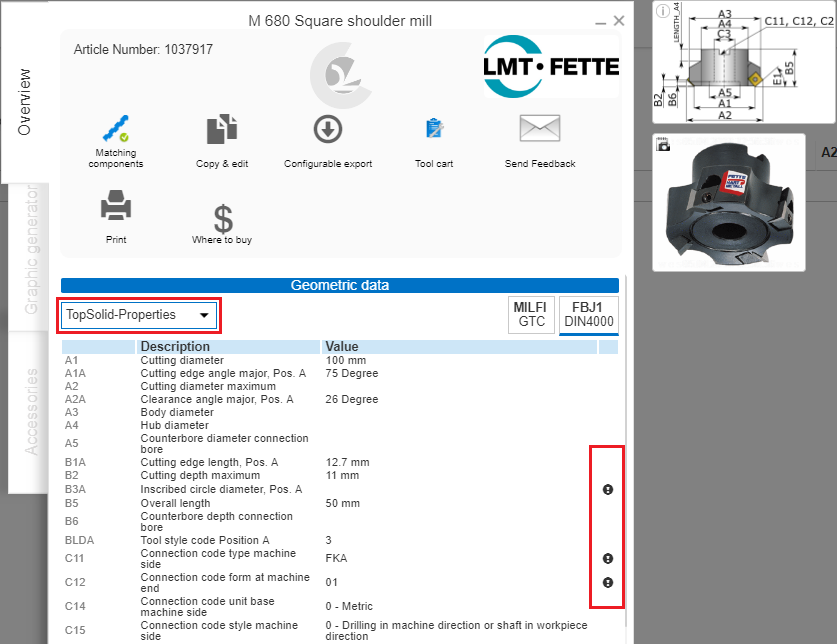
The TopSolid button appears only if the tool meets the required criteria. You can switch to the TopSolid properties in the tool data sheet by selecting them from the drop-down list on the left under “Geometric data.” If the tool is not TopSolid-compatible, you will see an explanation next to the relevant properties on the right.
3

Select a tool

Select a tool that can be exported to TopSolid and click the TopSolid button (1). The export window will appear. For tools with indexable inserts, the corner design of the cutting edges can now be adjusted. However, when exporting tool bodies, it is not possible to modify the corner design.

Click “Start export” (2) and save the file to your hard drive (3).

4

Use Cimsource Importer

Download the Cimsource Importer.

Now open the Cimsource Importer, select the downloaded tool, and click “Import.”

5

Open tool in TopSolid

The program then automatically opens TopSolid.
On the right, in the “Cimsource Library,” the newly added tool is highlighted in gray and can be opened by double-clicking it.

Any questions?

If you have any questions, please contact our support. We are happy to help!