
Tool Data for EXAPT BMO

Access thousands of cutting tool specifications form leading manufacturers and seamlessly import them into EXAPT BMO. Save time, reduce errors, and optimize your tool management workflow.

What Is EXAPT BMO?

EXAPT develops software solutions for digital manufacturing, specializing in CAD/CAM integration, NC programming, and production automation for CNC machining environments. Its technologies are designed to streamline manufacturing workflows, improve data consistency, and support efficient machining operations across complex production processes.

EXAPT BMO is a manufacturing management and optimization solution that helps companies organize and monitor CNC production resources, tooling data, and machining processes within a centralized digital environment. By improving transparency and coordination between programming, planning, and shopfloor execution, the system supports more efficient production workflows and reduced operational complexity.

Why Use ToolsUnited with EXAPT BMO?

ToolsUnited brings together tool data from different manufacturers in a single, reliable source — ready to use for your application.

1,334,650 unique tool components

Access a continuously growing library of tool components from leading manufacturers — all in one place, ready to be pulled directly into your workflow

62 world class brands and manufacturers

Source tools from more and more internationally recognized tool manufacturers. Whether you work with Sandvik, Kennametal, Walter, or others — ToolsUnited brings their complete catalogs together in a single, unified interface.

Checked data quality & DIN/ISO compatibility

Every tool component in ToolsUnited is validated for data integrity and complies with DIN/ISO standards. This ensures your CAM or tool management system receives clean, consistent data — no manual corrections, no compatibility issues.

File exports optimized for EXAPT BMO

ToolsUnited generates tool data exports specifically formatted for EXAPT BMO. Import-ready files ensure seamless compatibility and save your team the time spent on reformatting or data cleanup.

Follow the Step-by-Step Guide

New to the integration? Our guide walks you through setup and your first successful tool data transfer, step by step.

1

Start ToolsUnited

Click the “ToolsUnited-EXAPT” button in EXAPT-BMO.

2

Log in

ToolsUnited is launched (log in if necessary).

3

Search tools

Search for the desired tools in ToolsUnited…

4

Add tools to shopping cart

… select them and add them to a shopping cart.

5

Click export

Open the shopping cart and click the “Export EXAPT” button…

6

Confirm export

… optionally select the generation of 3D graphics and confirm the export.

7

Select BM Orders

Now select “BM Orders” in EXAPT-BMO.

8

Import tools

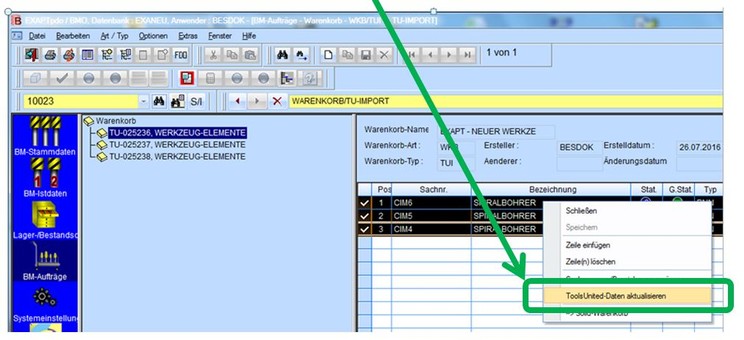
Import the ToolsUnited tools by right-clicking in the table.

9

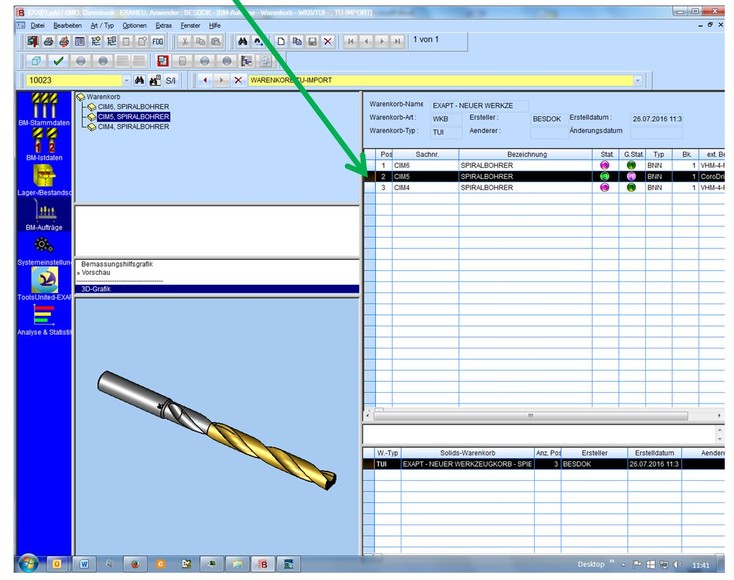
Tools are displayed

They now appear as a shopping cart and as items in the table.

10

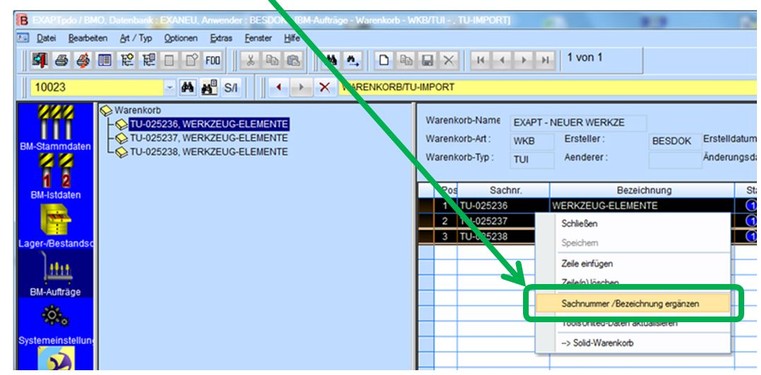
Adjust material number

Here, the material number of the tools can be adjusted.
11

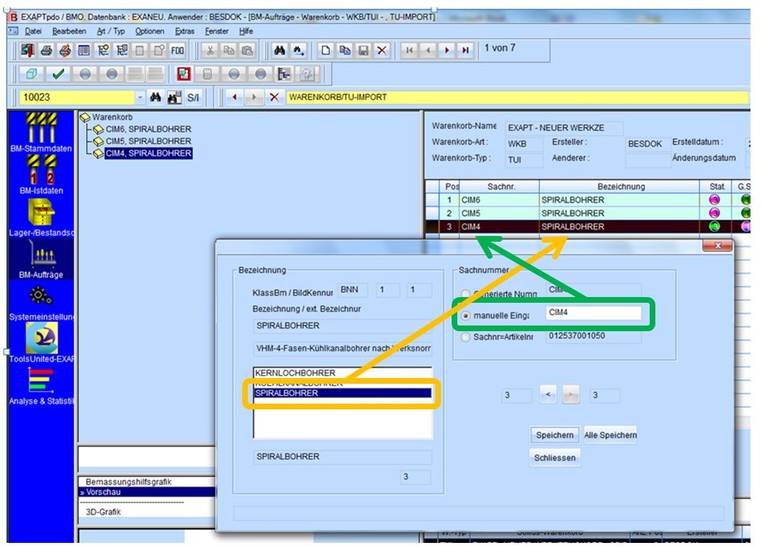
Adjust designation

Here, the designation of the tools can be adjusted.
12

Update data

… afterwards, the data must be updated.
13

Select tool

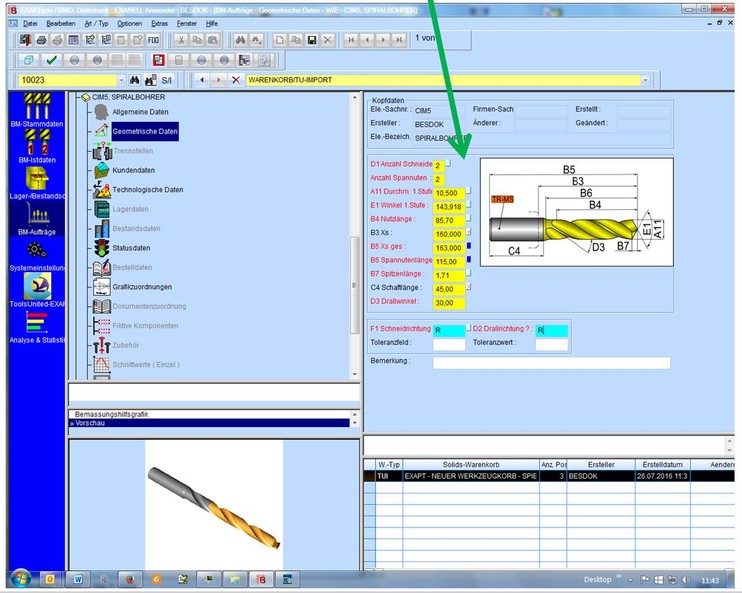
After selecting a tool…

14

Edit geometric data

… its geometry values can also be edited in a dialog.

Don’t forget to enter the connection codes.
15

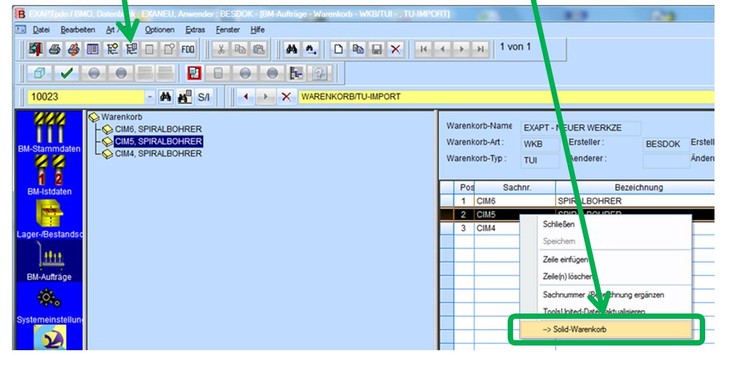
Switch to tool list

Switch to the tool list, and then the “new” (edited) tool is added to a shopping cart…
16

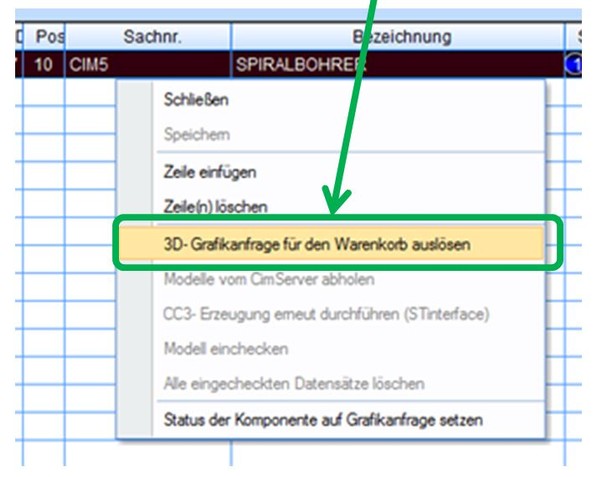
Start 3D generation

… start the 3D generation (in ToolsUnited)…
17

Load graphic files

… and load the generated graphics files.

18

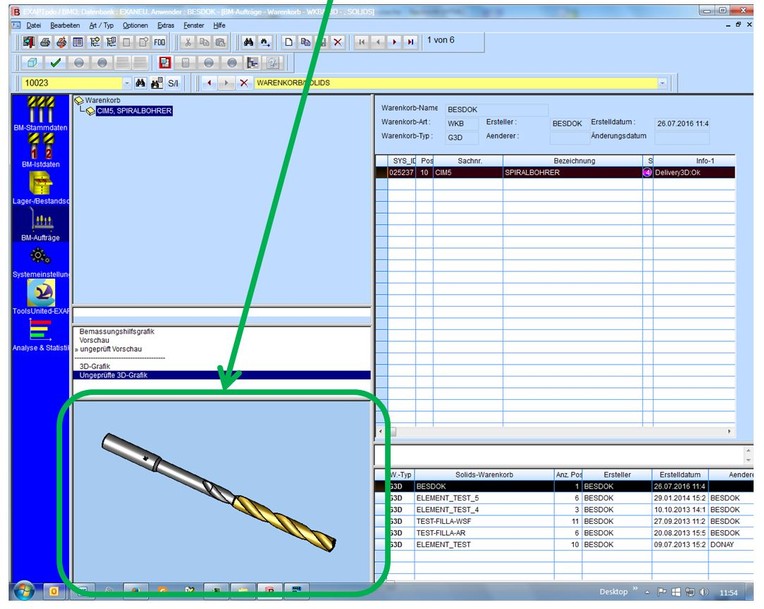
3D model is displayed

Now the corresponding 3D model is displayed in EXAPT-BMO…
19

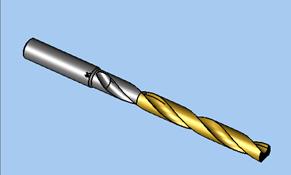
Compare tools

For comparison, the tool before editing:
20

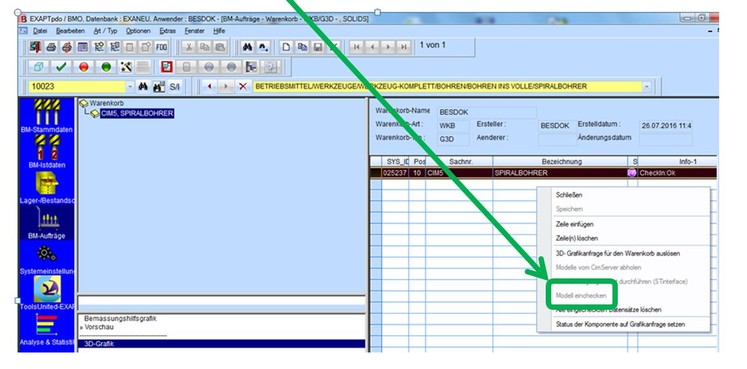
Check in tool

… and still needs to be checked in.

21

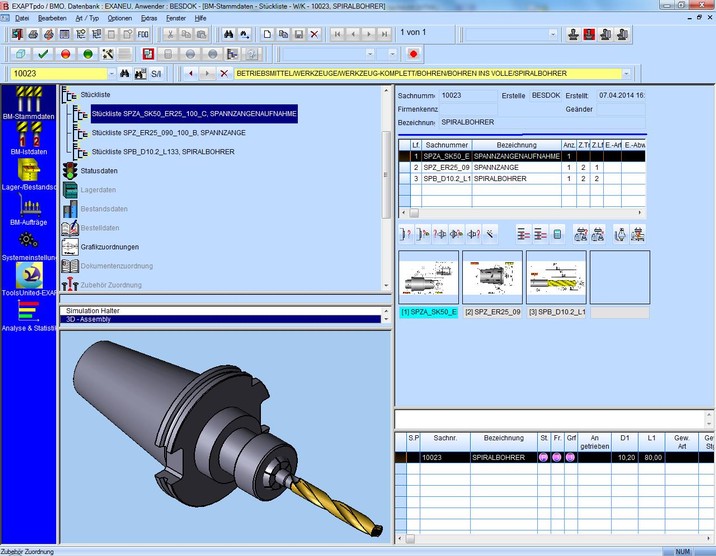
Imported tools are ready for assembly

Now the imported tools can be assembled with other BMO tools into complete tools.
Any questions?

If you have any questions, please contact our support. We are happy to help!